Headlo MCP
Use Headlo plugins from Claude, Cursor, Windsurf, and any platform that supports the Model Context Protocol. 30 tools — no browser required.
Loading…
Pick your platform
Claude Code
1. Generate your API key
2. Run this command
claude mcp add headlo --transport http https://api.headlo.com/v1/mcp --header "Authorization: Bearer YOUR_KEY"
Already exists? Remove it first:
claude mcp remove "headlo" -s local or claude mcp remove "headlo" -s user3. Confirm connected
Restart Claude Code, then run
/mcp and select headlo — you should see ✔ connected.4. Always allow Headlo tools
echo '{"permissions":{"allow":["mcp__headlo__*"]}}' > ~/.claude/settings.jsonStops Claude Code asking for permission on every tool call.
5. Set model (optional)
echo '{"model":"claude-sonnet-4-6"}' > ~/.claude/settings.json6. Try it
Run
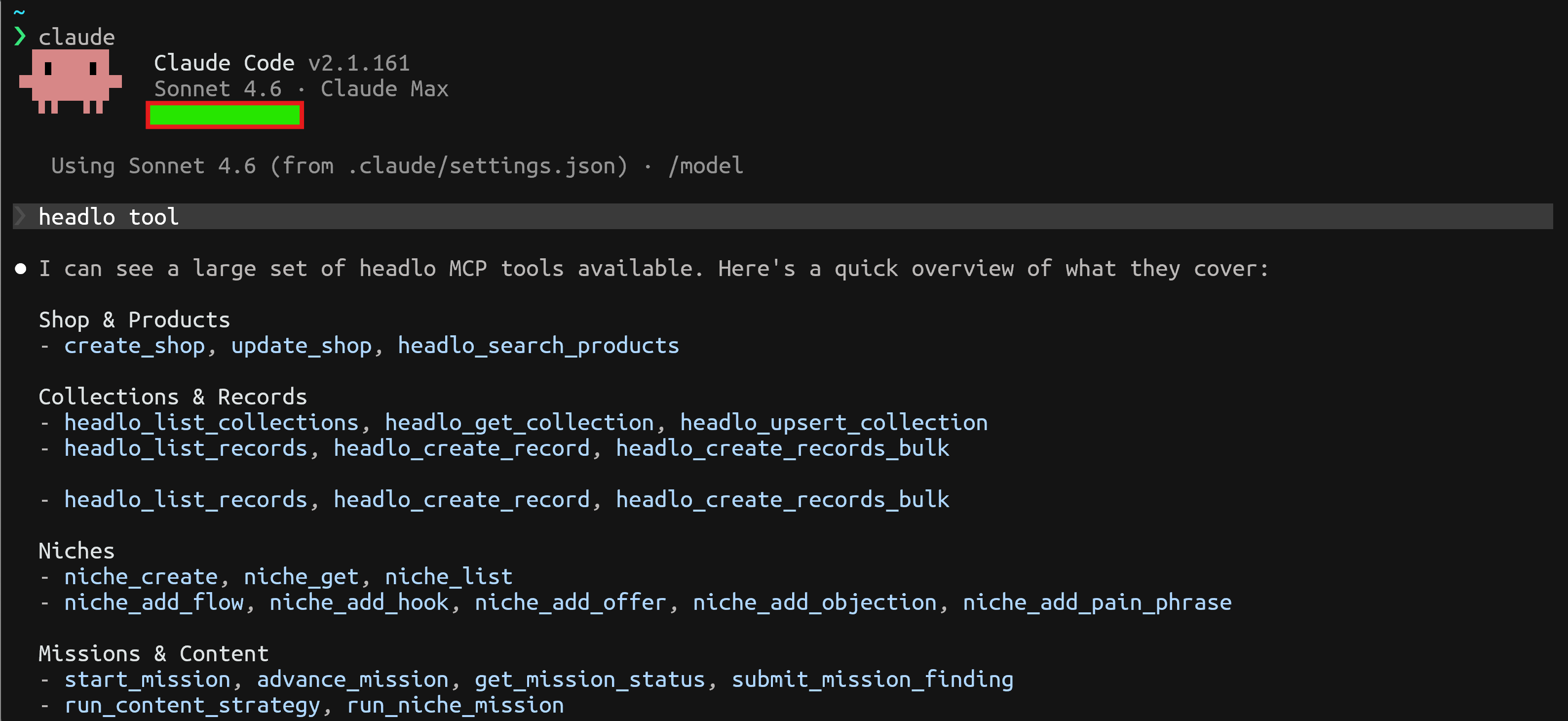
claude to start, then type headlo list collections to see your collections.Claude.ai
1. Open Connectors
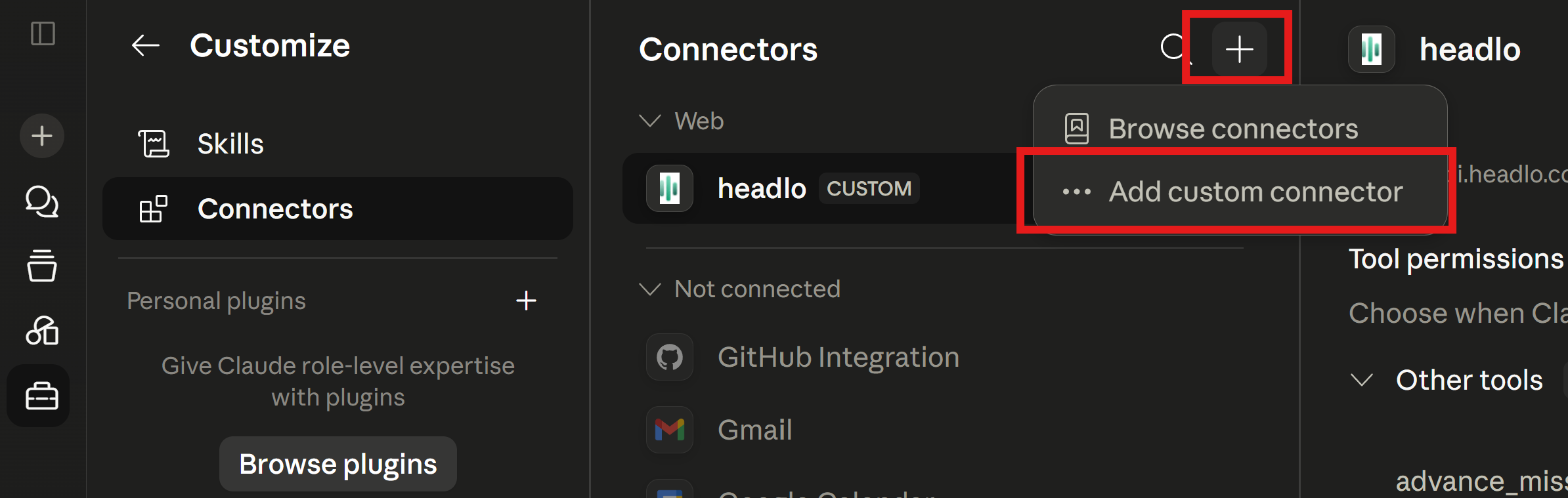
2. Generate your API key
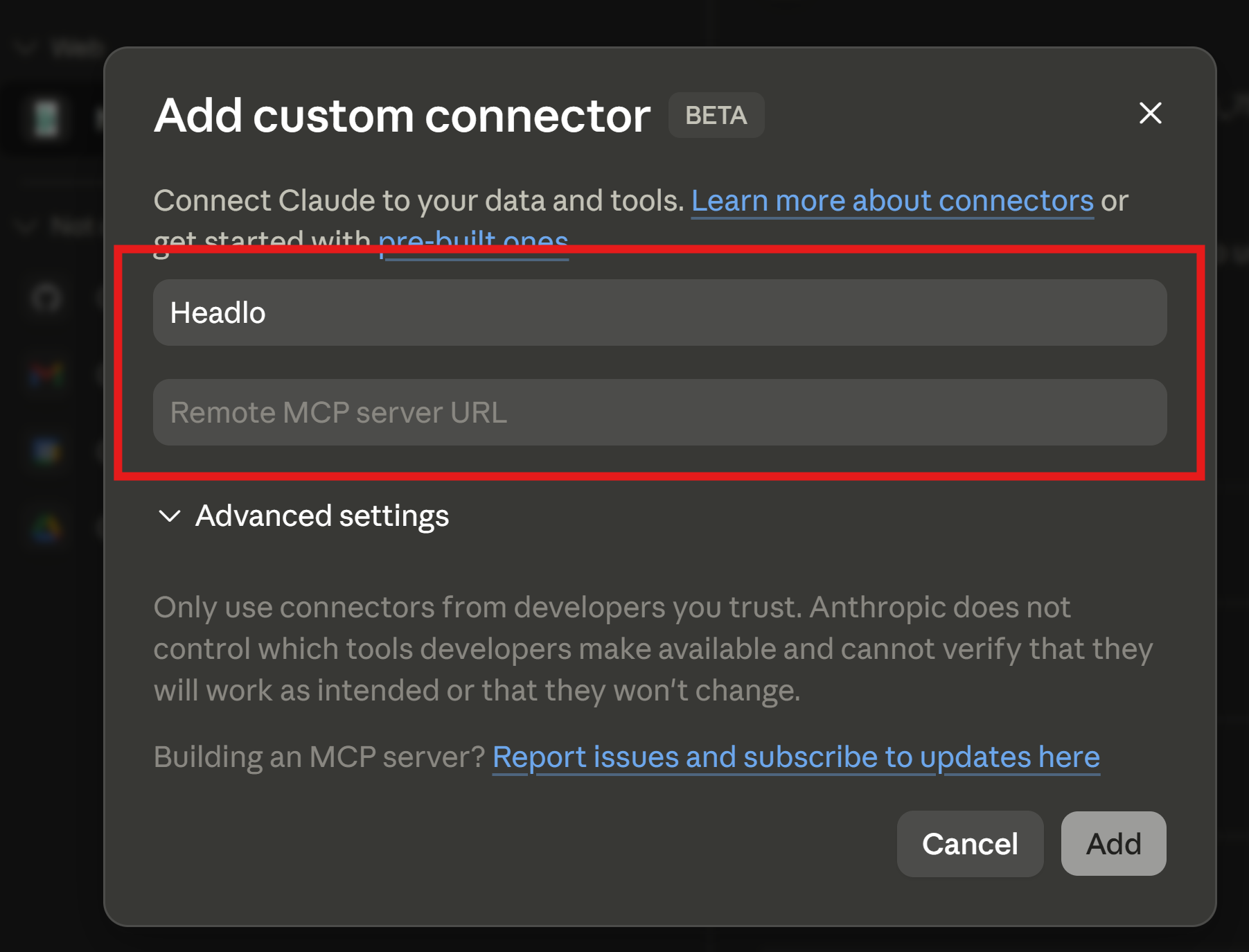
3. Fill in the form
Name:
HeadloRemote MCP server URL:
https://api.headlo.com/v1/mcp?key=YOUR_KEYLeave OAuth fields blank.
4. Click Add
Set all Headlo tools to Always allow.
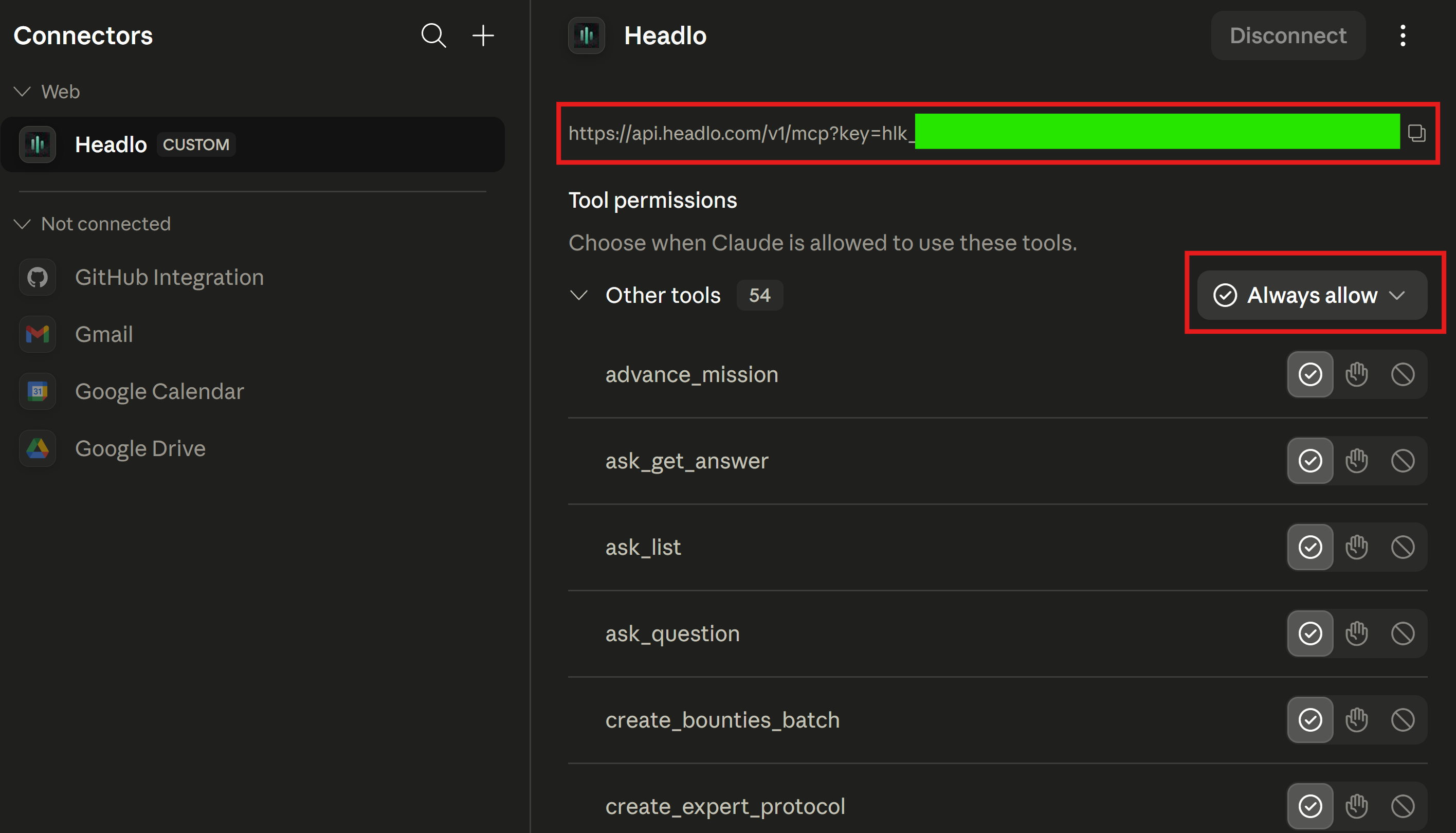
5. Claude Desktop
Once connected in Claude.ai, the connector is automatically available in Claude Desktop — no extra setup needed.
6. Try it
Type
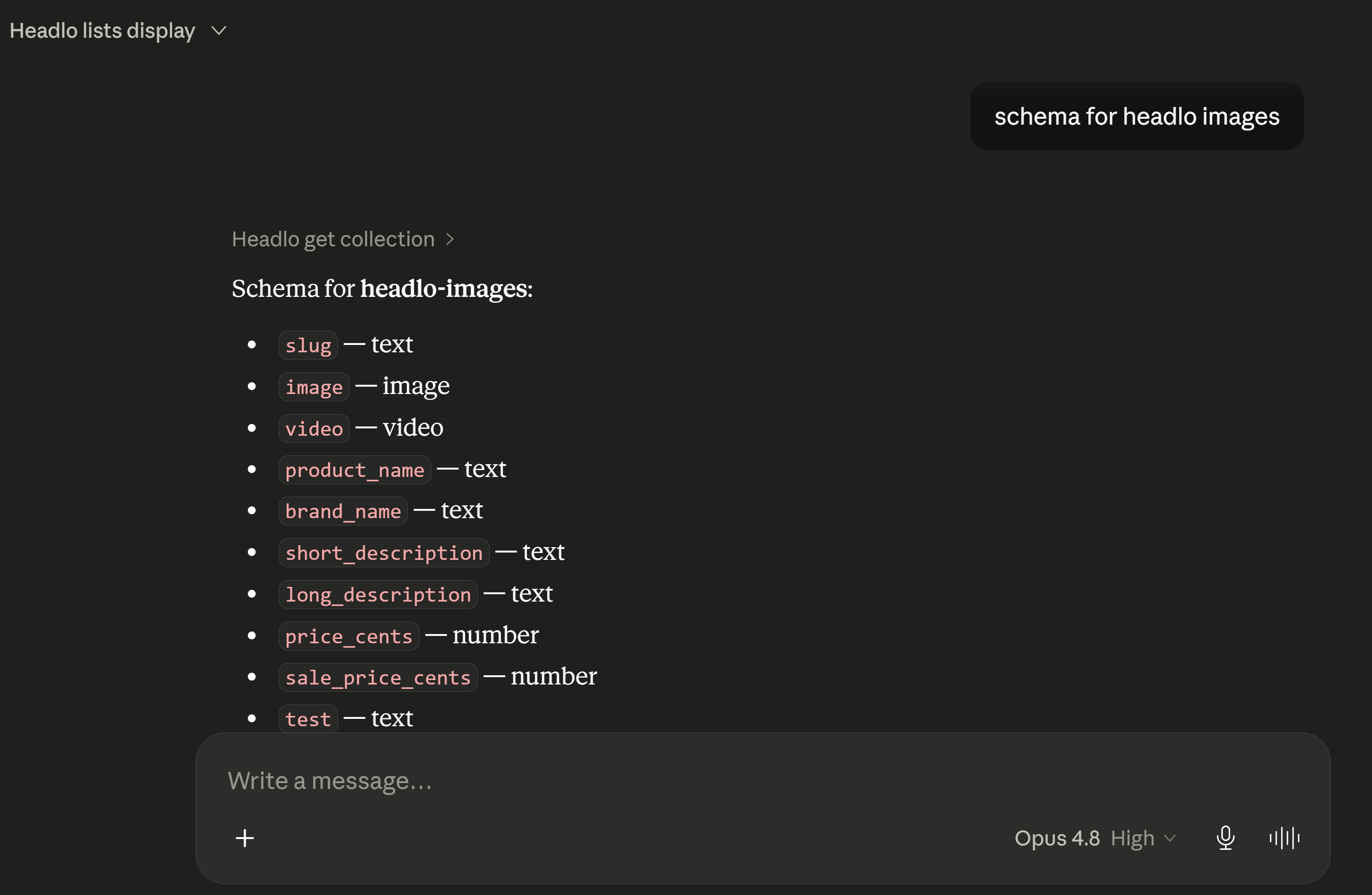
show my headlo collections to see your collections.VS Code
1. Generate your API key
2. Edit config
Add to
.vscode/mcp.json in your project (create if it doesn't exist):{
"servers": {
"headlo": {
"type": "http",
"url": "https://api.headlo.com/v1/mcp?key=YOUR_KEY"
}
}
}Requires VS Code 1.99+ with GitHub Copilot.
3. Enable agent mode
Open the Chat panel, switch to Agent mode, and select Headlo from the tools picker (the
⊕ icon).Cursor
1. Generate your API key
2. Edit config
Edit
~/.cursor/mcp.json:{
"mcpServers": { "headlo": { "url": "https://api.headlo.com/v1/mcp?key=YOUR_KEY", "transport": "http" } }
}Windsurf
1. Generate your API key
2. Edit config
Edit
~/.codeium/windsurf/mcp_config.json:{
"mcpServers": { "headlo": { "serverUrl": "https://api.headlo.com/v1/mcp?key=YOUR_KEY", "transport": "streamableHttp" } }
}